
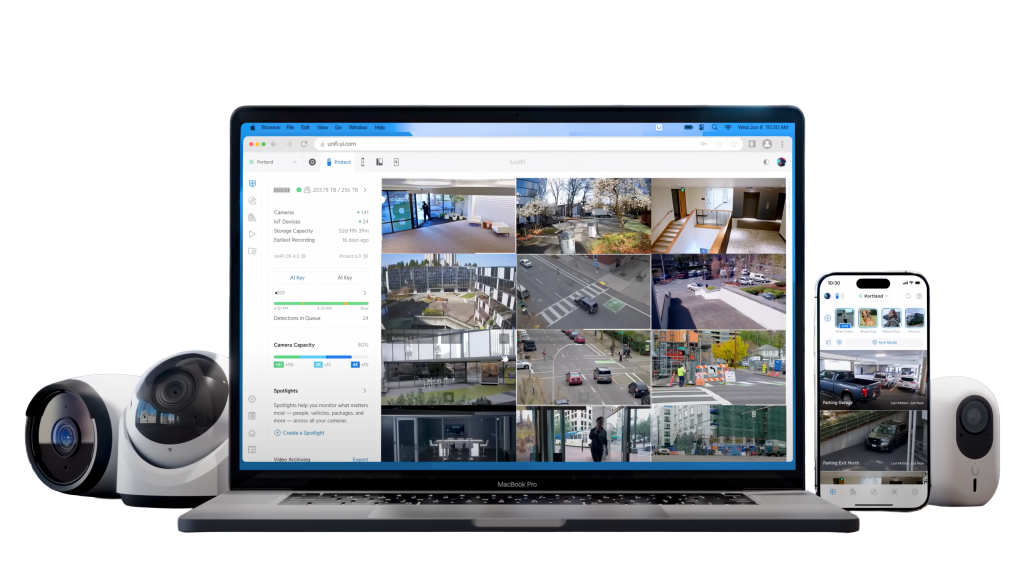
Quick Takeaways
- UniFi Protect video settings control video clarity, motion smoothness, storage efficiency, and browser compatibility
- The 11 key settings include FPS, Compression, Codec Encoding, Resolution & Stream Profiles, HDR/WDR, Low-Light/Night Vision, Bitrate, Audio, Privacy Zones, Recording Modes, and Aspect Ratio & Cropping
- FPS determines motion smoothness; Compression balances quality vs storage; Codec sets compatibility
- Resolution & Profiles let you optimize streams for recording, mobile, and browser playback
- HDR/WDR and Night Vision improve performance in tricky lighting
- Bitrate management is essential for remote/LTE setups
- Audio, Privacy Zones, Recording Modes, and Aspect Ratio provide fine-grained control
- Use this guide as an overview with links to detailed breakdowns for each setting
Why These Settings Matter
Default settings work, but you can usually get smoother live views, longer retention, clearer night video, and fewer false alerts by tuning a few dials. This summary explains each setting quickly and links to a deep dive for hands‑on steps, cheat sheets, and recommended values.
FPS: Motion Smoothness vs Storage
FPS (frames per second) decides how many frames are captured each second.
- Higher FPS: smoother motion, better for plates/faces.
- Lower FPS: smaller files and brighter low‑light exposure but more motion blur.
▶ Full guide: UniFi Protect FPS Settings: Auto vs Custom Explained
Compression: Quality vs Efficiency
Compression sets how aggressively video is reduced in size.
- More compression: smaller files but less detail.
- Less compression: larger files but sharper video.
▶ Full guide: UniFi Protect Compression Settings: Auto vs Custom Explained
Codec Encoding: Compatibility vs Storage Savings
UniFi Protect offers Standard (H.264) for universal browser compatibility and Enhanced (H.265/HEVC) for storage efficiency. Choose wisely for share links.
▶ Full guide: UniFi Protect Codec Encoding: Standard vs Enhanced
Resolution & Stream Profiles
Cameras expose High/Medium/Low stream profiles at different resolutions. Record on High, use Low/Medium for grids, and balance quality with bandwidth.
▶ Full guide: UniFi Protect Resolution & Stream Profiles: How to Optimize
HDR / WDR (Dynamic Range)
HDR/WDR helps retain detail in bright highlights and deep shadows (doorways, porches). It may impact motion handling and FPS.
▶ Full guide: HDR and WDR in UniFi Protect: When to Enable
Low-Light & Night Vision
IR LEDs, color night, exposure and gain define your after‑dark performance. Trade realism for identification as needed.
▶ Full guide: Optimizing UniFi Protect Night Vision
Bitrate & Bandwidth Management
Total bitrate ≈ resolution × FPS × compression. For LTE/remote sites, plan per‑stream budgets and use Low/Medium profiles for remote grids.
▶ Full guide: Managing Bandwidth in UniFi Protect
Audio Settings
Mic gain and optional noise/wind reduction can make audio usable evidence. Consider privacy laws and signage.
▶ Full guide: UniFi Protect Audio Settings: Mic Gain, Recording, and Privacy
Privacy & Detection Zones
Mask private areas and limit detection to relevant regions to cut false alerts and protect neighbors.
▶ Full guide: Privacy and Detection Zones in UniFi Protect
Recording Modes
Choose Always, Motion, or Smart Detections based on risk and retention goals. Add pre/post‑roll padding as available.
▶ Full guide: Recording Modes in UniFi Protect
Aspect Ratio & Cropping
The standard 16:9 ratio is a good choice overall for general scenes like yards and driveways.
Vertical mode ratio of 9:16 works well for tall, narrow scenes like doorway and hallways.
You can use cropping and regions of interest (ROI) for higher pixel density restricted only to the areas of the image that are important.
▶ Full guide: Aspect Ratio and Cropping in UniFi Protect
Cheat Sheet: Recommended Combinations
- Browser playback: 15–20 FPS, H.264, mid compression, Medium profile.
- Plates/faces: 25–30 FPS, H.264, less compression, High resolution.
- Low‑light areas: 12–15 FPS, H.264, less compression, IR enabled.
- Remote/LTE sites: 12–15 FPS, H.265, more compression, Low profile.
- Front door: Corridor mode, HDR On (daylight), Smart Detections, audio enabled.